The full review

A parent needs the lesson sheet before leaving home, but the email thread contains an old PDF and a newer cloud link. That is where I judge Gmail: not by how busy its inbox looks, but by how quickly I can find the right file, send it from the right account, and keep storage trouble from interrupting replies. I think it is a strong fit for this work, with one catch worth understanding early: replacing attachments with cloud links can tidy a conversation without reducing your shared storage use.
Part 1 · 1 of 3Start with the address parents should reply to
I would add the teaching or club account first, then add a personal account through the profile picture menu if needed. Gmail supports multiple accounts, including other email providers. For business email about lessons, that convenience needs a boundary: I check the sender address in Compose before attaching anything, especially when starting a fresh message rather than replying.
I prefer opening the relevant account inbox before handling parent messages instead of treating All inboxes as one work queue. As a youth sports coach scheduling practices, I want a venue change and a personal receipt to feel separate. That habit also matters when storage gets tight: the account holding the attachment is the one whose space needs attention.
Part 1 · 2 of 3Find the lesson sheet, not just the conversation
Gmail’s search is the everyday feature I value most here. A parent’s name plus a lesson topic is a better starting point than scrolling through a week of messages. When I know a PDF was attached, I can narrow the search with has:attachment or filename:pdf. I then check the message and filename rather than assuming the first matching thread contains the current plan.
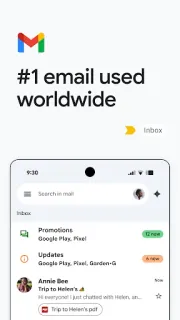
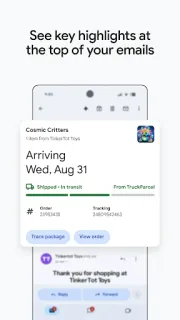
For material from online courses, I would search the course title alongside the sender or file type. Summary cards can surface useful details where available, but I would still open the actual message before forwarding teaching material. Search gets me to the candidate; checking the attachment keeps an obsolete worksheet from making another trip around the parent group.
Part 1 · 3 of 3Archive clears the inbox, not the storage meter
The easy mistake is treating Archive as cleanup for a full account. I like Archive for finished parent conversations because it removes inbox clutter while preserving search access. It does not release the space used by those messages or their attachments. A beautifully empty inbox can therefore sit inside an account that is still close to its storage limit.
Deleting is different, although messages in Trash continue using space until permanently removed. I would review large attachment threads before emptying Trash, not erase a term’s correspondence in one sweep. The distinction changes my recommendation: Gmail is good at keeping lesson correspondence accessible, but reclaiming capacity requires a deliberate file-and-message review rather than a tidier inbox view.
Good for parent replies; less useful as a teaching archive
I recommend Gmail for tutors, coaches, and teachers who mainly need searchable parent correspondence and easy access to cloud files. It also fits lesson coordination that occasionally leads to video conferencing. I would look toward a dedicated learning platform if the main task is distributing assignments, collecting submissions, or tracking each learner’s progress. Gmail can carry those conversations, but I would not make email threads the master catalogue for every lesson asset.
The listing, as we read it
- Developer
- Google LLC
- Version
- Varies with device
- Updated
- Nov 5, 2026
- Installs
- 10,000,000,000+
- Rating
- 4.1 out of 5
- Content rating
- Everyone
- Category
- Communication
- On Google Play since
- Sep 21, 2010
- Price
- Free
- In-app purchases
- No
- Ads
- Yes
Source: Google Play listing for com.google.android.gm · read Nov 9, 2026
Google LLC publishes Gmail, and Google Play flags it as containing ads and free to install. I separate that starting point from the optional Gemini features: the supplied description ties those tools to an eligible paid Google plan and an internet connection. My recommendation rests on ordinary email, search, and attachment handling.
I read the update notes as an emphasis on collaboration: chat, spaces, and voice or video calls alongside email. For parent communication, that can reduce switching between conversations and calls. It is not a storage-cleanup change, so I would still manage lesson files and account capacity separately.

Keep lesson files reachable when storage gets tight
Part 2 · 1 of 4Change swipe actions before clearing old lesson threads
I would open Settings, then General settings, and review Mail swipe actions before doing a large cleanup. An easy Archive gesture suits completed parent replies; Delete deserves more care when a conversation holds the only copy of a lesson sheet. Making the gesture intentional helps prevent the wrong kind of cleanup, though neither choice replaces reviewing what the thread actually contains.
I would also review notifications within the teaching account’s settings so parent replies receive appropriate attention without every course newsletter demanding it. Notifications will not solve storage pressure, but they help distinguish urgent correspondence from material that can wait. For capacity itself, I use the Google account’s storage view to see whether mail or cloud files are the larger concern.
Part 2 · 2 of 4A Drive link is not extra storage
For a personal Google account, Gmail, Google Drive, and Google Photos share storage. That is the limit I would check before moving a pile of lesson attachments into Drive and expecting relief. Saving another copy there while retaining the original email can increase the total used. Work or school accounts can have different arrangements, so I check the relevant account rather than assuming identical capacity.
Large files may need to travel as Drive links rather than ordinary attachments. I like that for a lesson video, but the file still occupies cloud space in its owner’s account. If the account reaches its limit, Gmail sending and receiving can be affected. My priority is therefore removing genuinely unnecessary copies, not merely changing how a parent reaches the same material.
Part 2 · 3 of 4Use one current plan and check its permissions
My preferred workflow is to keep the current lesson plan in a clearly named Drive folder and email its link with a short explanation of what parents need. Before sending, I check the file’s sharing permissions for the intended recipients. A neat message is not useful if the parent opens it outside the organisation and meets an access request instead of the worksheet.
For cleanup, I would search Gmail with has:attachment larger:10M to surface messages worth inspecting. Then I would confirm which lesson files already have a usable home, delete only unnecessary messages, and review Trash before permanent removal. I would not promise an immediate change in the storage display. The important result is a clear file location without accidental loss of correspondence.
Part 2 · 4 of 4Choose attachments for snapshots, links for changing plans
I still prefer a conventional PDF attachment when parents need a fixed lesson sheet that should not change after sending. It gives the message a definite document to refer back to, although repeated revisions create competing copies. I would name the file clearly and explain which earlier sheet it replaces. That is simpler than asking parents to infer the right revision from a long conversation.
For an evolving term plan, I prefer a cloud link because the shared file can stay current without another attachment on every reply. The trade-off is permissions and continued availability: moving, removing, or restricting the file can disrupt access. Gmail handles the conversation well; my choice between a link and an attachment depends on whether parents need a living resource or a stable record.
My pick for correspondence, with storage housekeeping attached
I would choose Gmail for its account switching, useful search, and straightforward connection between messages and teaching files. Those basics matter more to me than extra writing tools when a parent is waiting for the correct worksheet.
My reservation is file discipline. Archive is not capacity cleanup, and a cloud link is not a storage saving by itself. Keep a clear home for current plans, inspect large attachments, and Gmail becomes a much more dependable correspondence hub.
What I like
- I can search by sender, topic, and attachment type.
- Multiple accounts keep teaching addresses accessible.
- Drive links suit changing lesson plans.
- Archived parent conversations remain searchable.
What I'd change
- Archive does not reclaim storage.
- Cloud links require careful sharing permissions.
- Repeated attachments complicate revision tracking.
Gmail FAQ
Does archiving parent emails free space?
No. I use Archive to clear the inbox, not reduce storage; the messages and attachments remain in the account.
Why is Gmail full when my inbox looks empty?
Archived mail still uses space. For personal Google accounts, I would also check Drive, Photos, and Trash because storage is shared.
Should I send lesson videos as attachments?
I prefer a Drive link for large lesson videos. I check access permissions first and remember that the video still uses its owner’s cloud storage.
How can I find large lesson attachments?
I would start with has:attachment larger:10M in Gmail search, then add a lesson topic or sender. I inspect each result before deleting anything.
Do I need Gemini to manage parent emails?
No. My recommended workflow uses ordinary search, account switching, attachments, and cloud links; optional Gemini tools are separate from those basics.
 TipsGmail
 TroubleshootingCode Studio