I’ll help you pinpoint why Police Radar can’t locate you and work through the fixes, starting with the quickest checks.
Mateo IrvingReviewer · published Oct 25, 2026 · 6 min read
01When the map stays blank, check GPS first
You’re parked at the curb, Police Radar is open, and the map still hasn’t settled on your position. I’d check the phone’s location before blaming the camera data: the app uses GPS coordinates, so a weak or unavailable location signal can leave the display without a useful fix. Treat the map as a prompt to check your surroundings and posted signs, not as permission to ignore a speed limit.
The likeliest causes, in order, are location switched off or permission denied; a poor GPS signal indoors, among tall buildings, or under a roof; battery or background restrictions interrupting location; and an app connection or data issue. If your position appears but camera markers look stale, the problem may be connection or map data rather than GPS itself.
For a quick distinction, step somewhere with a clearer view of the sky while parked safely. If the position improves, reception was probably the obstacle. If it stays missing, check the phone settings next. I schedule youth practices on the move, so I know the temptation to troubleshoot while rushing; do these checks before driving, not while watching the screen on the road.
02Fix the permission in the fewest taps
Start with the setting most likely to block the app: location permission. On Android, open Settings, find Apps, select Police Radar - Camera Detector, then open Permissions and Location. Allow location access while using the app, and make sure the phone’s main Location setting is on. Menu names can vary a little by Galaxy model, but the app’s permission screen is the useful destination.
Open Android Settings and make sure the phone’s Location setting is on.
Go to Apps, select Police Radar - Camera Detector, then open Permissions and Location.
Allow location while using the app, then reopen Police Radar somewhere with a clear view of the sky.
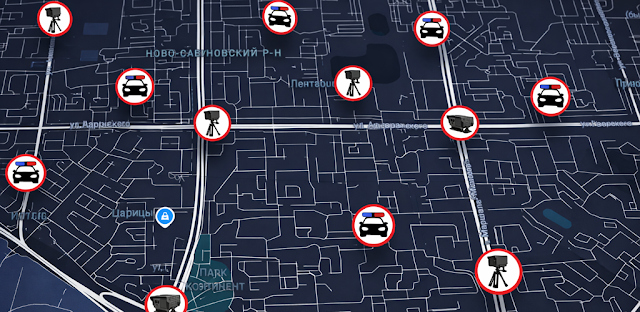
Don’t judge a camera alert from a single marker; the app’s description says mobile cameras and patrols depend on reports from other users. If you use parental controls or a managed phone, check whether they restrict location access for this app. Change only the setting you’re allowed to manage. If the phone’s location is available in other apps but Police Radar remains blank, move on to signal and power checks rather than repeatedly toggling the same permission.
A phone can have permission and still struggle to establish its position. A basement, covered parking space, dense buildings, or a phone tucked low in the car can interfere with GPS reception. Park somewhere safe with open sky, keep the phone still for a short while, and see whether the position settles before deciding the app has failed.
If you rely on a mid-range Galaxy A-series phone like I do, avoid expecting a reliable position from a phone buried under bags or hidden in a deep console. A secure mount with a clear view is more practical. Never adjust the mount or stare at the map while moving; set up before departure, then follow road signs and speed limits.
GPS connection speed is one area the developer says has been improved, but reception still depends on where the phone is. Weather alerts can help you plan around rough conditions, but they don’t improve GPS reception. If your position is still wrong in an open area, check whether the phone’s location works elsewhere before changing more settings.
04Stop battery settings from cutting location
If the map works at first and then loses your position, battery restrictions are a plausible next cause. Open the app’s battery settings in Android and check whether it is restricted or placed in a sleeping-app list. On some phones, power-saving options can limit background activity; the exact controls depend on the device and Android version.
For a focused check, temporarily switch off battery saver while parked and reopen the app. If location behaves differently, adjust only the restriction affecting Police Radar rather than turning off every power-saving feature. Restore your usual settings if the change makes no difference. This is a troubleshooting check, not a reason to keep the screen active or handle the phone while driving.
Also check that the phone has enough charge and isn’t overheating. GPS use can add to battery drain, especially on a long trip with the screen on. I’d set the route and position before leaving, keep the phone secured, and use the app as a secondary aid rather than relying on it to replace attention to the road.
05If your position works but camera markers don’t
A working position with missing or outdated camera markers points away from a basic GPS permission problem. The app’s description distinguishes stationary cameras from mobile cameras and patrols marked by other users. That means a blank mobile report layer doesn’t establish that the road is clear; reports can vary by location and by what other users have marked.
Check that the phone has a working internet connection, then close and reopen the app while parked. The developer says the radar database was updated and the geolocation chat’s city list expanded. Those changes may matter to coverage, but they can’t guarantee that every road or recent mobile report appears on your screen.
Don’t use the app to decide how fast to drive. Follow posted limits, and treat speed-limit information near fixed cameras as an extra reminder, not an authority over road signs. If you’re planning a drive that includes car maintenance stops or changing weather alerts, sort those details before setting off; don’t try to search or report locations from behind the wheel.
06Use a clean restart before reinstalling
If permissions, open-sky reception, power settings, and connection all check out, restart the phone and open Police Radar again. This clears temporary problems without changing your saved settings. Try the app while stationary and connected, then confirm the location permission is still allowed if Android asks again.
If it remains stuck, open the Google Play listing and check that you have the current app version available for your device. You can also clear the app’s cache from Android’s storage settings; avoid clearing app data unless you understand that it may remove locally stored information. Reinstalling is a later step, after confirming you can access the app through Google Play and are comfortable setting it up again.
If only one area has a stale map, the cause may be coverage rather than a setting on your phone. Keep the app as a supplementary road-awareness tool and verify conditions with road signs. The useful next move is to note whether the failure is location, markers, or both, so you don’t repeat fixes that address the wrong problem.
The takeaway
First check Android’s Location switch and Police Radar’s permission, then test outdoors while parked; that separates a settings problem from weak GPS reception.
Continue to this site’s Police Radar page just below for more practical help with the app.
The Considered Pick is independent and not affiliated with M.I.R.. This guide reflects the reviewer's own setup; menus can differ by device and version.
 Best picksMy Location
 TipsCurrency converter offline
 TroubleshootingCode Studio
 CompareForeca Weather & Radar
 How-tomyAudi
 How-toRemote Control for Rоku &

 TipsInvitation Maker
 CompareGps Map Navigation &
 TipsGmail
 How-toThe Official MTA App
 Tipsearnify