Currency converter offline: 6 checks before you pay
I’ll show you how to set up a reliable travel conversion before the card reader is waiting and the signal disappears.
Mateo IrvingReviewer · published Nov 8, 2026 · 6 min read
01Set both currencies before leaving the hotel
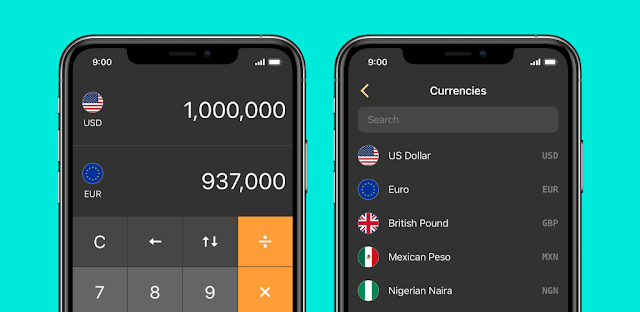
At a market stall, the seller names a price in local currency while your phone is still trying to connect. I avoid that scramble by choosing the currencies I’ll actually compare before heading out: local money on one side, my home currency on the other. Open the currency search, find each currency by name or code, and set the pair while you have a connection. Check the labels beside the amount fields so you know which currency you are entering and which one you are reading.
This is a small trip-planner habit, not a promise that every displayed rate will match the amount your payment provider uses. I use the app to get a quick sense of scale, then treat the result as an estimate for deciding whether a price is reasonable. It pays off most when prices are unfamiliar and I need a fast comparison. If your next stop uses a different currency, change the pair before you start comparing prices rather than relying on a remembered symbol.
02Refresh the online rate before going offline
Before a train ride, a flight or a walk into an area with weak reception, open the app while online and let its exchange rate refresh. Then check that your chosen currency pair is still on screen. The app has an offline mode, so preparing before the connection drops gives you a useful reference when you cannot reach the Internet. I make this check while I can still correct a mistaken currency selection or enter a new amount.
I would not assume an offline figure stays current indefinitely. Exchange rates move, and an offline conversion can only use the information available on the phone. If you regain reception before a larger purchase, reconnect and refresh first; for a quick snack or taxi estimate, the saved reference may be enough to make a practical decision. Keep in mind that a provider may apply its own rate or charges, so use the app to compare costs rather than predict an exact final payment.
At a grocery counter, several small prices are harder to judge one by one than as a total. Tap into the calculator and use its addition, subtraction, multiplication or division controls to combine the amounts, then convert the result with your selected currencies. For repeated items, multiplication can turn a unit price into a rough total without switching to another app. Start with the quantities and prices you can verify, and check the running calculation before adding another line.
This is especially handy when comparing a menu, market basket or group activity cost. I keep the arithmetic simple and check that I have not entered a decimal in the wrong place before trusting the conversion. The calculator helps with the math; it does not decide whether a listed price includes local fees or service charges. If you are splitting a shared cost, divide the total only after confirming that everyone is sharing the same items and that the total is in the currency you intended.
04Search by currency name when symbols get confusing
When two currencies use a familiar-looking symbol, search by the currency’s name or code instead of tapping the first symbol you recognize. The app’s smart currency search is useful here: enter a few letters, choose the intended result, and confirm both sides of the conversion before typing an amount. That extra glance matters when a receipt or sign uses a symbol that appears in more than one place. A quick search is also clearer than trying to remember which currency you selected on an earlier leg of a trip.
I use this approach when planning a trip across borders or comparing a price from an older note with today’s destination currency. It also reduces the chance of leaving a previous currency selected after changing plans. Once the pair is right, copy and paste a number from a message or note if that is faster than retyping it. If the search returns several close-looking choices, read the full currency name before selecting one; the short code helps distinguish options that share a symbol.
05Paste the quoted amount, then check the decimal
For a hotel quote sent in a message or a price copied from a booking page, copy the amount and paste it into the converter rather than re-entering every digit. The app supports copying and pasting numbers, which is useful when a long figure or decimal makes a typing slip more likely. Before reading the converted result, check that the pasted amount has the expected digits and decimal position. Pay particular attention to punctuation: a dot or comma may be used differently across the prices you encounter.
I find this most useful for comparing travel booking options or a vacation package total, where a misplaced zero can distort the whole comparison. Keep the original quote visible if you can, and compare like with like: the same currency, the same number of nights or people, and any clearly stated extras. The conversion is a quick aid, not a substitute for checking the quote itself. For hotel deals, compare the stated total rather than one nightly figure if the booking pages present different totals or durations.
06Use dark theme when checking prices at night
If you are checking a late airport meal, a dim train cabin or a hotel-room receipt, switch on the dark theme in the app’s settings. It gives you a darker interface for a quick look without changing the currency math. I turn it on when the screen feels too bright for the setting, then keep the amount and currency pair visible so I can read the result at a glance. You can return to the same setting and switch back whenever you prefer a lighter screen.
This is a comfort setting, not a battery guarantee. For a trip with several stops, I also keep the app ready before I enter a place with patchy reception: choose the currencies, refresh while online, and use offline mode for the quick estimates. That simple sequence leaves less to sort out when someone is waiting for an answer. I also keep the calculator for totals and use search when a symbol looks ambiguous, rather than trying to make a rushed guess at the counter.
The takeaway
First, set your home and destination currencies, refresh the rate while online, and try one small calculation before you leave. That gives you a reference when reception drops.
For more practical tips and app details, continue to The Considered Pick’s Currency converter offline page just below.
The Considered Pick is independent and not affiliated with Mezhevikin Aleksei. This guide reflects the reviewer's own setup; menus can differ by device and version.

 Best picksMy Location
 TroubleshootingCode Studio

 How-toRemote Control for Rоku &
 CompareGps Map Navigation &

 How-toThe Official MTA App

 Tipsearnify

 How-toCelebrity Cruises

 TipsInvitation Maker

 TipsGmail

 TipsCamera Translator

 How-toPixVerse