Remote Control for Rоku & TCL: Fix a TV That Won’t Connect
I’ll walk you through pairing the app, checking the right network, and getting the on-screen remote working before practice starts.
Mateo IrvingReviewer · published Nov 9, 2026 · 6 min read
01Start with the TV and phone on the same Wi-Fi
Practice is about to start, the TV is waiting for a video, and the phone remote cannot find it. I start with the Wi-Fi connection because the app controls compatible TVs over the local network. Check that the TV is on, then open the phone’s Wi-Fi settings and confirm it is connected to the same home network as the TV.
On the TV, open its network settings and check the connected network name. Compare that with the name shown on the phone; a guest network or a separate network from the Wi-Fi router can keep the devices apart. If you have several access points, choose the same network name on both devices before trying the app again. It’s a small check, but it prevents a lot of unproductive tapping.
02Choose the TV from the app’s connection screen
With the network check done, open Remote Control for Rоku & TCL and look for the TV-selection or connection screen. Keep the TV awake while the app searches. If several devices appear, use the TV’s brand and the device name shown on its screen to choose the right one. Don’t select a streaming box if you mean to control the television itself.
If a confirmation prompt appears on the TV, use the physical TV remote to approve the connection. Then return to the app and try a simple command, such as volume up. I schedule youth sports practices, so I want this first check to be quick: a response to one button press tells me more than repeatedly tapping every control. If nothing happens, pause and check the network before running the search again.
A blank device list is usually a reason to recheck the path, not to start tapping at random. Confirm both devices are on the same Wi-Fi, wake the TV, and reopen the app’s device search. If the phone recently switched networks, reconnect it to the TV’s network first. A restart of the TV and phone can also clear a temporary connection snag without changing their setup. Try these steps in order:
On the phone, tap Settings, then Wi-Fi, and select the network name used by the TV.
On the TV, tap Settings, then Network, and confirm it is connected to that same network.
Open Remote Control for Rоku & TCL and tap the TV or device-search control.
Select the intended TV from the results.
If the TV shows a connection prompt, tap Allow or approve it with the TV’s physical remote.
If the TV still does not appear, check that it has finished starting up and that the phone has not moved to mobile data or another Wi-Fi network. Then repeat the search once. A wireless printer can also disappear when devices sit on different networks; the same basic network check is useful here, though the app’s connection steps apply to the TV.
04Test the buttons before relying on the phone
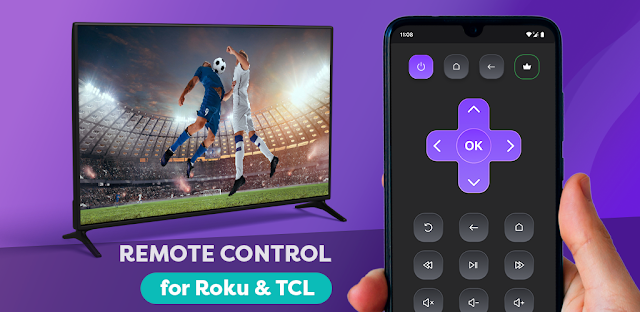
Once connected, check the controls you actually need: directional arrows, OK or Select, Back, Home, volume, and power if those buttons are shown. Try one at a time and watch the TV for a response. A phone remote can be handy when the original remote has slipped behind the sofa, but it still depends on the phone staying on the right network.
If navigation works but volume does not, check whether you selected the TV rather than a separate streaming player. Those devices can have different control responsibilities. On a mid-range Galaxy A-series phone, I also keep the app open while checking a command so the screen doesn’t lock midway through a change. If only one function fails, reconnect before assuming every control is unavailable. Check the physical remote as a comparison if it is within reach.
05Use screen sharing when the phone display is the point
For a photo, web page, or other phone screen you want to show, use the app’s screen-sharing option rather than the standard remote buttons. Open the app’s screen-sharing control, follow any on-screen connection prompt, and keep the phone and TV on the same Wi-Fi. Screen sharing shows the phone’s display; it is a different job from casting a video to the TV.
Try the feature with something you are comfortable showing on the larger screen. Notifications and other visible phone content may also appear while sharing, so close anything private first. If the picture does not appear, stop sharing, check the network on both devices, and reconnect from the app. For a video, use the app’s cast option if that is the control you want; screen sharing and casting are not interchangeable. A smart TV’s own menu may also offer display options, but start with the control inside the app.
06Make the next connection less fiddly
After the TV responds, leave the phone connected to the household network you normally use and keep the app easy to find. If the connection drops later, first check whether the phone joined a guest network or the TV went offline. A smart home setup can have several network names that look similar, so matching the actual connected network is more useful than guessing from the room or device name.
I’d keep the original TV remote nearby until the phone connection is confirmed, especially before a scheduled show or team video. The phone app is a practical backup, not a reason to troubleshoot under pressure. Start with the same-network check, select the TV in the app, and test navigation; then move on to screen sharing or casting only if that is what you need. For a smoother routine, check the connection before everyone has gathered around the screen.
The takeaway
First, check that your phone and TV use the same Wi-Fi, then select the TV in the app and test one remote button.
Continue to my Remote Control for Rоku & page just below for more practical help with the app.
The Considered Pick is independent and not affiliated with SensusTech LLC. This guide reflects the reviewer's own setup; menus can differ by device and version.
 Best picksMy Location
 TipsCurrency converter offline
 TroubleshootingCode Studio

 TipsCamera Translator
 TipsUltra Watch Face

 TipsInvitation Maker
 CompareGps Map Navigation &
 TipsGmail
 How-toThe Official MTA App
 Tipsearnify

 How-toPixVerse