Ultra Watch Face: Set Up 4 Glances for Practice Days
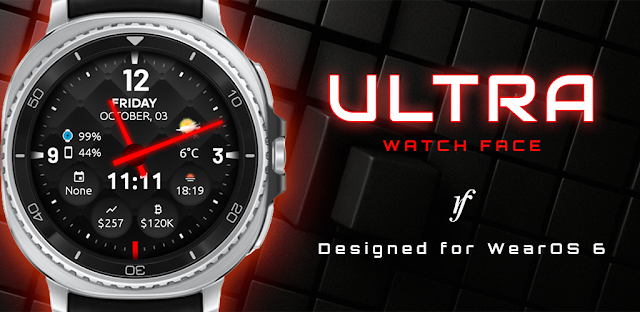
I’ll show you how to arrange Ultra Watch Face around the details I need between practice plans, so each glance earns its space.
Mateo IrvingReviewer · published Oct 24, 2026 · 6 min read
01Choose your four fixed complications before you change anything
I’m checking the time at the field while a parent asks whether practice moved, and my phone is buried under a clipboard. That is when four useful complications beat a face crowded with details. Ultra Watch Face’s free version has four fixed complications; decide which information you want to see at a glance before you start tapping around.
Press and hold the watch face, then open its customization controls and look for the complication choices. The exact labels can vary by watch, so follow the options shown on your screen. Pick details you check repeatedly, not ones that look impressive. When the four positions are fixed, it pays to give each one a clear job instead of expecting the face to do everything. On my own routine, that could mean date, a step-related glance and whichever other details are useful that day. A good layout is about removing decisions, not adding decoration.
02Put the information you need fastest in the easiest spot
A glance should work while I’m carrying cones, not only when I hold my wrist perfectly still. In the face editor, check each complication position and choose the most readable, useful placement for the detail you reach for most. Keep the time visually prominent; use the remaining spaces for information that can be read quickly without competing with the hands.
Try the layout with your arm relaxed at your side, then turn your wrist as you would during a busy practice. If a complication is hidden by your sleeve or hard to read at that angle, move it if the editor allows. This small check pays off during short glances; next, make the background work for the same situation. Repeat the check in the lighting where you actually use the watch. A position that seems obvious while you are editing can be awkward when you are walking or holding something.
03Pick a background that survives daylight and sleeve checks
The face that looks crisp indoors can be harder to read on a bright field. If you have Premium, open the background options in the face customization controls and compare the available types against where you use the watch most. A simpler, higher-contrast look is often the practical choice when you’re outside or moving, while a more detailed background can suit quieter indoor days.
Wear the watch as you normally would and check the time without stopping what you’re doing. If the hands or small details blend into the background, choose a different available type rather than squinting. This is also a good moment to consider ambient mode: Premium includes Simple and Detailed ambient modes, so select the one that keeps the resting display useful without adding visual clutter. Check both the bright, active screen and the resting display; the better choice is the one you can read in the situation that matters most.
04Use the step goal as a progress check, not a distraction
On a day split between errands and practice, I care more about whether I’m making progress than about staring at a number. Premium includes a steps goal process. If that element is available in your setup, keep it in a spot you can check quickly and treat it as a glanceable progress cue rather than a reason to interrupt the day.
The useful setting is the goal you can understand at a glance. Open the watch face’s available settings and look for the step-goal controls; choose a target that makes sense for your routine, if the option is offered there. Check it during a natural pause, such as while waiting for players to arrive. That keeps the complication helpful without turning every wrist raise into a new task. If it draws your eye too often, move it lower in priority or choose another complication; the face should support your schedule, not become another thing to manage.
05Choose the right battery detail for a long day out
A watch battery complication and a phone battery complication answer different questions. Premium includes both, so decide which one you’re more likely to need before you assign the space. When I’m away from a charger for most of the day, the watch’s remaining power is the detail I’d want close at hand; when I rely on my phone for schedule messages, its battery may matter more.
Use the face editor’s complication picker to select the battery detail that fits your day, if the picker offers both choices. Don’t give both positions to batteries by habit: one visible battery can be enough, leaving room for weather or another useful item. This choice pays off when you need to plan a charge before heading out, rather than discovering the problem at the wrong moment. Revisit the choice when your routine changes—for example, a short trip away from home has different demands from a day when you can return to a charger.
06Keep weather and heart-rate expectations clear
Premium includes a weather complication, so it can earn a spot when an outdoor practice might change my plans. Choose it through the available complication controls and check that the displayed conditions are relevant before relying on them. If the weather looks stale, check the phone’s connection and the watch’s available connectivity settings; a Wi-Fi router matters only if your phone or watch uses that network.
The description also promotes a step counter and continuous heart-rate tracking, but a watch-face glance is not a substitute for checking the relevant activity or health information on the watch. I’d reserve the face for the details I can interpret quickly, then open the appropriate watch screen when I need more context. That distinction keeps the layout useful instead of asking a small display to answer every question. For changing plans, weather is most useful as an early prompt to check conditions, while the full watch screen is where I’d go for more detail.
The takeaway
Start by pressing and holding the face, then decide which four details deserve space before adjusting the background or positions. Keep the time clear and choose complications for the moments you actually check your wrist.
For more practical advice, continue to The Considered Pick’s Ultra Watch Face page just below.
The Considered Pick is independent and not affiliated with RichFace. This guide reflects the reviewer's own setup; menus can differ by device and version.

 Best picksMy Location

 TipsCurrency converter offline
 TroubleshootingCode Studio

 How-toRemote Control for Rоku &

 TipsCamera Translator

 TipsInvitation Maker
 CompareGps Map Navigation &

 TipsGmail

 How-toThe Official MTA App

 Tipsearnify

 How-toPixVerse