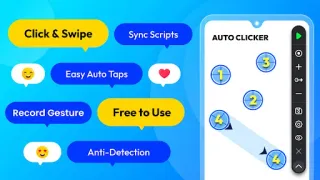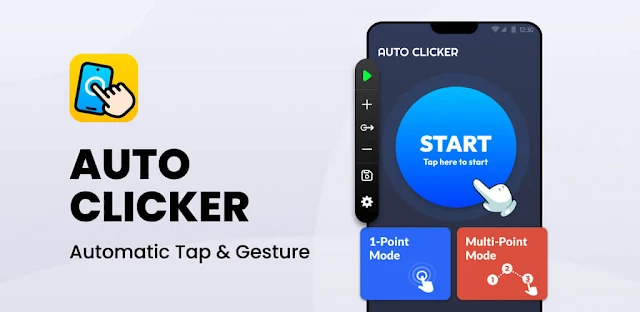
A reading app keeps advancing while you are trying to follow a passage, or a test screen needs the same sequence of taps again. Auto Clicker: Auto Tapper is built for those repetitive on-screen actions: you set the points or swipe routes, then use its floating panel to run or resume the script. The first snag is often practical: a tap point that worked on one screen may land in the wrong place after the layout shifts. Check the screen before letting a routine run unattended.
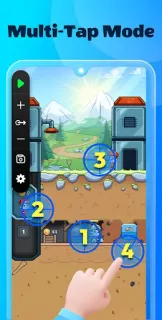
The app lets you add multiple click points or swipe routes, choose intervals, and save scripts for later. Its floating controls are there to start or adjust a routine without rebuilding it each time; scripts can also be imported or exported. The listing describes uses such as testing screens, reading novels and browsing short videos. This is for actions on your Android display, not for controlling a laptop, smart TV or wireless printer.
The important setup step is granting Accessibility Service access, which the app uses to simulate taps and swipes. That permission is powerful, so enable it only if you are comfortable with the purpose and keep an eye on what a script is doing. The app requires Android 7.0 or newer. It is free to install, but includes ads and in-app purchases; check the Google Play listing for purchase details. Cloud storage is offered for syncing scripts, so consider whether that fits how you want to keep them.
I’d install it for a stable screen routine I can check first, such as repeated taps in a testing screen or a swipe through reading content. I’d skip it for actions where a misplaced tap could submit, delete or change something important, and it won’t solve a task that depends on a physical device such as wireless earbuds. Start with a short script and watch its first run before relying on it. If that trade-off fits, use the Google Play button just below to open the listing.